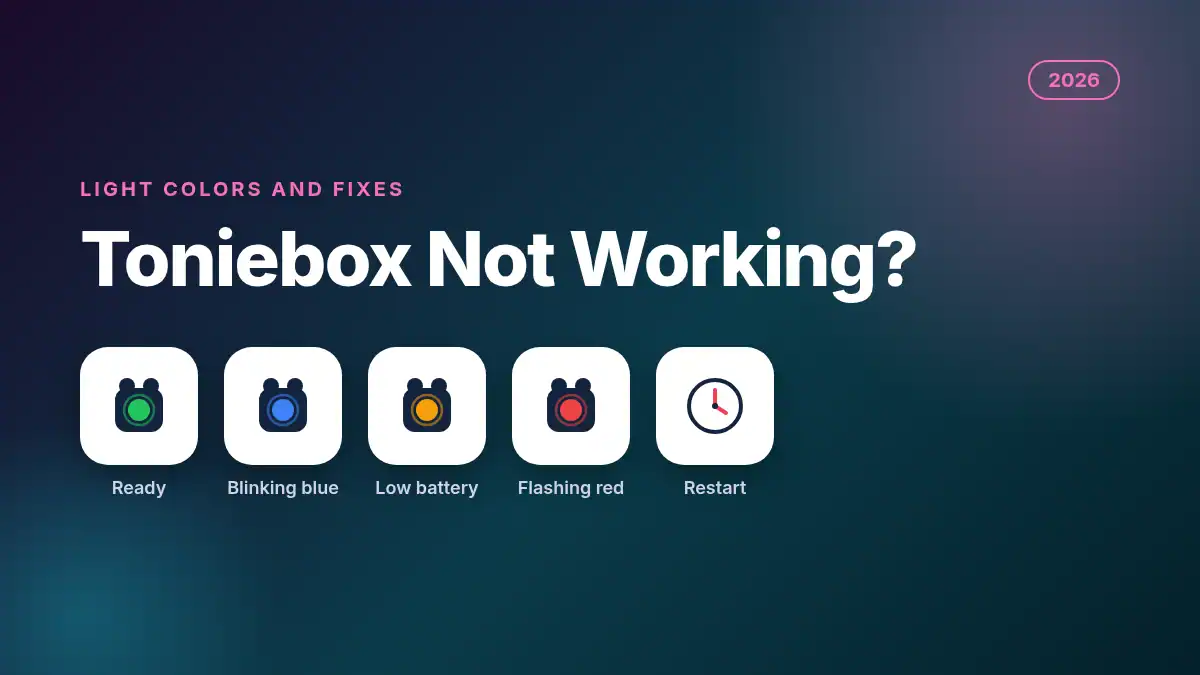
Toniebox Not Working? Light Colors and Fixes (2026)
If your Toniebox is not working, read the light first: blinking blue with no story usually means it is stuck in Wi-Fi connection mode, flashing red means it needs charging or hit a connection error, and solid green means it is ready but the Tonie may not be fully downloaded. Most fixes take one minute: end connection mode, charge it, or do a soft restart (off the charger on a Toniebox 1).
That is the quick version. The longer version matters because the Toniebox has one trap that turns a small glitch into a big one: on a Toniebox 1, the restart and the factory reset use the same ear squeeze, and the only difference is whether the box is sitting on its charger. This guide gives you a Toniebox light and codeword decoder for both the Toniebox 1 and Toniebox 2, the right restart for each model, and fixes for the most common “it just sits there” problems. Every step comes from the official tonies support pages linked below.
Why is my Toniebox not working?
Most of the time the Toniebox is doing exactly what its light says. It may be in Wi-Fi connection mode (blinking blue), low on battery (orange or red), still downloading a Tonie (blinking blue with audio), or set to 1+ mode on a Toniebox 2, which blocks playback while charging. Match the light to the fix below.
A few habits cause most of the trouble in a busy house:
- Little hands pinching both ears. On a Toniebox 1, pinching both ears for about 5 seconds puts it into connection mode, and it will not play Tonies until you end it.
- A new Tonie with no Wi-Fi. New Tonies download their content the first time you place them. With no Wi-Fi, a Toniebox 1 says the codeword “Turtle” instead.
- Lifting the Tonie too early. If the Tonie comes off while the light is still blinking blue, the download is incomplete and it may not play offline later.
- Router changes. A new router, a new password or a 5 GHz-only network can leave the box unable to reconnect.
- A flat battery. A fully drained Toniebox 1 gives no lights, no sound and no reaction at all, which looks a lot like “broken.”
What do the Toniebox light colors mean?
On a Toniebox 1, solid green means ready, blinking blue means downloading or connection mode, orange means the battery is getting low, and flashing red means charge it now. On a Toniebox 2, the Dynamic Light Ring adds solid white for parent access, rainbow while a Tonie plays, and a partial red ring for an empty battery.
Toniebox light and codeword decoder: our summary of the official tonies support pages for the battery signals, the Toniebox 2 Dynamic Light Ring and the codeword articles linked further down.
| What you see or hear | Model | What it means | What to do |
|---|---|---|---|
| Solid green | Toniebox 1 and 2 | Ready to play | Place a Tonie. If nothing plays, see the downloading section below |
| Blinking blue, Tonie on top and audio playing | Toniebox 1 | Downloading that Tonie | Leave the Tonie on until the light turns solid green and a chime plays |
| Blinking or pulsing blue, nothing plays | Toniebox 1 | Connection mode (both ears pinched about 5 seconds) | Remove the Tonie, pinch both ears about 5 seconds until you hear a signal |
| Flashing blue full circle | Toniebox 2 | Downloading content or connecting | Wait; large downloads and updates take longer |
| Blue swinging semi-circle | Toniebox 2 | Pairing mode, ready to set up | Finish setup in the tonies app |
| Orange light plus a tone | Toniebox 1 | Battery starting to run low | Put it on the charging station |
| Solid orange | Toniebox 2 | Nightlight is active and the box will power down on a timer | Squeeze both ears for 5 seconds to turn the nightlight off |
| Red light plus an audio message | Toniebox 1 | Playback is about to stop | Charge it |
| Flashing red, will not turn on | Toniebox 1 | Battery too low | Charge it; an audio prompt tells you to |
| Partial flashing red ring | Toniebox 2 | Out of battery | Charge it |
| Flashing red full circle | Toniebox 2 | Usually a connection error, often with a codeword | Check Wi-Fi, then restart |
| Solid white | Toniebox 2 | Parent access mode | Expected while you change settings |
| No light, no sound | Toniebox 1 or 2 | Battery fully flat, or brightness set to 0% on a Toniebox 2 | Charge it, then check brightness in the app |
| Codeword “Owl” | Toniebox 1 | Connection issue | Restart (off the charger), then reconnect Wi-Fi |
| Codeword “Hedgehog” | Toniebox 1 | Connection problem between the box and your router | Restart the router, or use a 2.4 GHz mobile hotspot |
| Codeword “Turtle” | Toniebox 1 | Not connected to Wi-Fi when a new Tonie needs downloading | Reconnect Wi-Fi, then place the Tonie again |
How to read it: find the light or word, then do the last column. If that does not work, restart the box using the steps for your model below.
How do you fix a Toniebox that keeps blinking blue?
A Toniebox 1 that blinks blue and will not play is usually in connection mode, which starts when both ears are pinched for about 5 seconds. Take the Tonie off, pinch and hold both ears for about 5 seconds until you hear an audio signal, and wait for the light to flash green and then turn solid green.
These steps come straight from tonies support’s article on a Toniebox 1 LED that keeps blinking blue:
- Remove any Tonies from the Toniebox.
- Pinch and hold both ears for about 5 seconds until you hear an audio signal.
- Watch the light flash green a few times and then turn solid green.
- Put the Tonie back on.
The catch: blinking blue is also what a healthy Toniebox 1 does while it downloads a new Tonie. The difference is sound. If the story is playing while the light blinks, it is downloading, so leave it alone. If nothing plays, it is connection mode. Toddlers who discover that squeezing both ears does something exciting will trigger this again, so expect a few repeat visits to this section.
How do you restart a Toniebox without erasing it?
On a Toniebox 1, take it off the charging station first, turn it upside down and pinch both ears for about 10 seconds until you hear a signal. Doing the same thing while it sits on the charger triggers a factory reset that deletes all downloaded content, so the charger position is the whole difference.
Here are the official steps for each model.
Toniebox 1 soft restart (from How do I restart the Toniebox 1?):
- Take the Toniebox off the charging station.
- Turn it upside down so the ears point down.
- Pinch both ears for about 10 seconds until you hear an audio signal.
- Turn it upright. When the light is solid green again, it is ready.
Toniebox 2 restart (from How do I restart the Toniebox 2?):
- Make sure the Toniebox 2 is not plugged in.
- Squeeze both ears until it enters the sleep light with timer setting.
- Keep squeezing. The restart can take up to 1 minute, and tonies suggests using a timer so you complete the full 60 seconds.
- Reconnect the charger. The Welcome Lights and Welcome Music mean it worked.
Factory reset, only as a last resort. For a Toniebox 1, tonies’ factory reset article says to put the box on the powered charging station, turn both upside down together and pinch both ears for about 10 seconds. It erases saved Wi-Fi networks and every downloaded Tonie, so you will need Wi-Fi to download each Tonie again afterward.
Why won’t my Toniebox turn on?
A Toniebox that shows no light and makes no sound is usually completely flat. Put it on the charger and give it time. On a Toniebox 2, tonies says to restart it first, then give it a full charge, which takes about 4 hours over USB-C. If it still stays dark, contact tonies support with your Toniebox ID.
The battery level article explains how a Toniebox 1 warns you on the way down: an orange light and tone when the battery starts getting low, a red light and audio message when playback is about to stop, flashing red when it will not turn on, and finally no response at all when it is fully flat. A Toniebox 1 has no battery percentage readout, so the lights are the gauge.
For a Toniebox 2 or Toniebox Lite, the tonies app shows the battery level: open the app, tap Mine and select your Toniebox. That only works while the box is online.
The Toniebox 2 not turning on article has a short list: restart it, then fully recharge it (about 4 hours with a USB-C cable), then message the Customer Happiness team. If your box is still under warranty, that last step is the one that matters.
Why does my Toniebox 2 not play when it is plugged in?
That is expected when the Toniebox 2 is set to 1+ mode, which blocks playback while it charges. To change it, open the tonies app, tap your Toniebox 2, open Settings and scroll to Age Mode, then switch it from 1+ to 3+. After that, it plays while plugged in.
This one confuses a lot of parents because it looks like a fault: the box lights up on the charger and simply refuses to play. tonies support’s article Why does my Toniebox 2 not play a Tonie when it is plugged in? confirms it is the 1+ setting doing its job. If your child is under three, you may prefer to leave it on and just unplug before story time.
Why won’t my Tonie play without Wi-Fi?
A Tonie only plays offline after it has fully downloaded onto that specific Toniebox. Place it on the box while it has Wi-Fi and leave it there until the blinking blue light turns solid green and a chime plays. Each Tonie has to download separately on each Toniebox you own, which matters for grandparents’ houses and road trips.
The rules from tonies’ download guide for the Toniebox 1:
- Download at home first. A new Tonie starts downloading as soon as it touches the box, shown by the blinking blue light, and it plays while it downloads.
- Do not lift it early. tonies says to keep the Tonie on top while the light blinks blue so the download completes. The download can take a few minutes depending on the Tonie and your Wi-Fi.
- Solid green plus a chime means done. After that, that Tonie no longer needs Wi-Fi on that box.
- The app is not proof. A Tonie showing in your app collection only means the box detected it, not that it finished downloading.
- Skipping needs a full download. You cannot skip between tracks until the content has fully downloaded.
Holiday tip: if a Toniebox is going to be a gift, set it up and download the first Tonies at home before wrapping, so it works on the morning it gets opened, even at a relative’s house with no Wi-Fi password in sight.
How do you fix Toniebox Wi-Fi errors like Owl and Hedgehog?
Both codewords point to Wi-Fi trouble. For Owl, restart the Toniebox 1 off the charger and reconnect Wi-Fi. For Hedgehog, restart your router by unplugging it for 10 to 15 seconds, restart the Toniebox, and if it still fails, set it up through a mobile hotspot on the 2.4 GHz band.
From tonies’ articles on Codeword: Owl and Codeword: Hedgehog:
- Restart the router. Unplug it, wait 10 to 15 seconds and plug it back in.
- Restart the Toniebox 1 off the charger (upside down, both ears, about 10 seconds).
- Reconnect Wi-Fi. Pinch both ears for about 5 seconds to enter connection mode and follow the tonies app.
- Try a hotspot. tonies suggests a mobile hotspot or a different network. On Android, set the hotspot band to 2.4 GHz, not 5 GHz; on newer iPhones, turn on Maximize Compatibility. Run the setup from a different device than the one making the hotspot.
- Check the router setting. tonies says the Toniebox needs a DHCP server, which routers normally have switched on by default.
If the Owl codeword shows up during the very first setup, tonies says a factory reset and a fresh setup is the way through, since there is no content to lose yet.
Frequently Asked Questions
How do I reset my Toniebox?
For a soft restart on a Toniebox 1, take it off the charger, turn it upside down and pinch both ears for about 10 seconds. Doing the same on the powered charger is a factory reset that erases downloads and Wi-Fi settings. On a Toniebox 2, unplug it and squeeze both ears for up to 60 seconds.
Why is my Toniebox flashing red?
On a Toniebox 1, flashing red means the battery is too low to turn on, so charge it. On a Toniebox 2, a partial flashing red ring means the battery is empty, while a full flashing red circle usually means a connection error, often with a codeword.
Does the Toniebox work without Wi-Fi?
Yes, for Tonies that have already fully downloaded onto that box. Each new Tonie needs Wi-Fi once to download, shown by a blinking blue light that turns solid green with a chime when it is done. After that, it plays offline on that Toniebox.
Why does my Toniebox stay green but not play?
Solid green means the box is ready, so the issue is usually the Tonie or the setting. Make sure the Tonie finished downloading, check that a Toniebox 2 is not in 1+ mode while plugged in, and try a soft restart. If one Tonie fails while others play, contact tonies support.
How long does a Toniebox take to charge?
tonies says a Toniebox 2 takes about 4 hours to charge fully over USB-C. A Toniebox 1 has no battery percentage readout and warns you with an orange light, then red, so put it on the charging station as soon as you see orange.
What is the bottom line on a Toniebox not working?
Read the light, then do the matching fix: end connection mode for blinking blue, charge it for red or no light, switch a Toniebox 2 out of 1+ mode if it will not play on the charger, and restart off the charger before anything drastic. Save the factory reset for when nothing else works.
If the Toniebox is on its way out, or you are shopping for a different screen-free audio player, our roundup of the best electronic learning toys for 3-year-olds and our guide to the best MP3 players for kids cover the alternatives. And if the toy drama has moved on to a virtual pet, here is how to fix a Tamagotchi that is not working.